Choose a clean source
Use the largest original file you have, remove accidental duplicates, and avoid repeatedly enlarging a previously compressed copy.
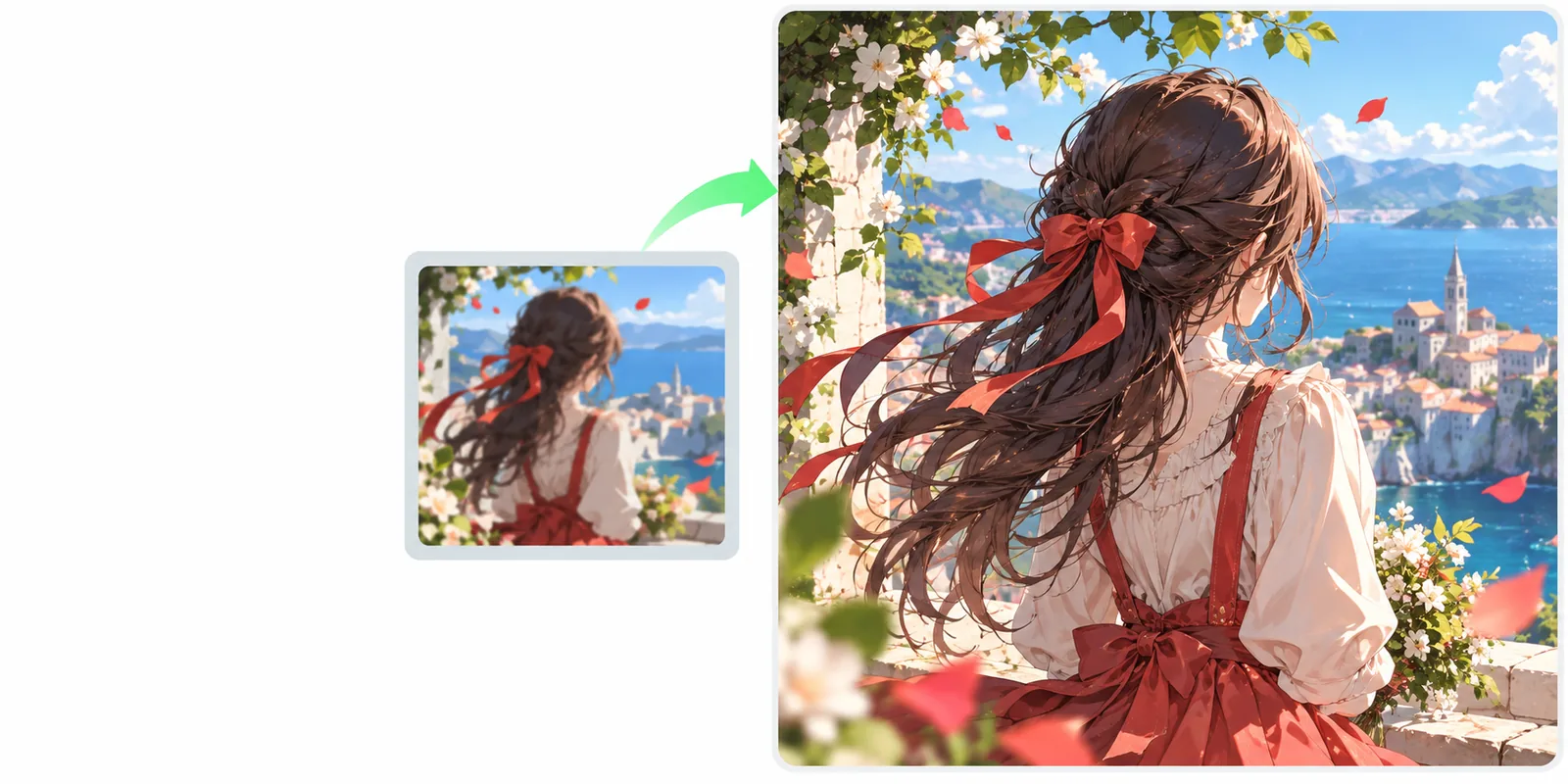
Image enlargement
Free bigjpg online searches often lead to unclear tools and mixed expectations. This guide explains what the Bigjpg workflow can do, how to use it, and where another approach may be more suitable.
Related routes
Choose the page that matches your next question, whether you want a definition, a tool comparison, or a closer look at enlargement features.
Get a plain-language explanation of Bigjpg, its purpose, and the kind of images it is designed to enlarge.
See how Bigjpg picture enlarger workflows handle resolution, detail, and common image types.
Compare alternative image enlargement approaches when Bigjpg does not fit your quality or workflow needs.
Know the edges
A free bigjpg online workflow can be useful, but it is not magic restoration. These constraints matter before you spend time preparing a large batch.
Upscaling can make edges look cleaner, but it cannot recover text, facial features, or textures that were never captured in the source.
WorkaroundStart with the sharpest original available and compare the enlarged result at 100% view.
Anime art, photographs, line drawings, and compressed screenshots can need different treatment. One setting may not produce equally natural results across all of them.
WorkaroundTest one representative image before processing a full folder.
Availability, queue behavior, upload rules, and output options can change by route or service version. Do not assume every Bigjpg feature is included everywhere.
WorkaroundCheck the current tool interface and keep the original file until the result is confirmed.
Bigjpg focuses on increasing apparent size and clarity; it does not replace cropping, color correction, object removal, or detailed retouching.
WorkaroundFinish enlargement first, then use a separate editor for composition and cleanup.
Simple workflow
The basic Bigjpg process is short: prepare a suitable source, let the image enlargement run, then inspect the result before using it elsewhere.
Use the largest original file you have, remove accidental duplicates, and avoid repeatedly enlarging a previously compressed copy.
Add the image to the Bigjpg workflow and choose the available enlargement or quality options that fit the subject.
Check faces, thin lines, lettering, and high-contrast edges at full size. Keep the output only if it improves the image for its intended use.
At a glance
Use this side-by-side checklist to decide whether a Bigjpg output is ready for your next step or needs a different source or tool.
Good candidate
Original photo or artwork with visible detail
Needs another approach
Tiny, heavily compressed, or repeatedly resized file
Good candidate
Faces, objects, or broad shapes are already recognizable
Needs another approach
Important features are missing or badly blurred
Good candidate
Web display, print preparation, or larger reference view
Needs another approach
Pixel-perfect text recovery or forensic reconstruction
Good candidate
Clean anime, illustration, or simple graphic edges
Needs another approach
Broken lines, noisy scans, or mixed artifacts
Good candidate
More usable apparent size and smoother detail
Needs another approach
A completely new high-resolution original
Good candidate
Compare at full size before publishing
Needs another approach
Judge only from a small preview
Practical checkpoints
These are not promises of a particular output. They are the measurable checkpoints that help you assess whether an enlargement is useful.
Visual check
A larger file is only valuable when the important subject remains convincing. Look for cleaner contours without expecting missing information to appear perfectly.
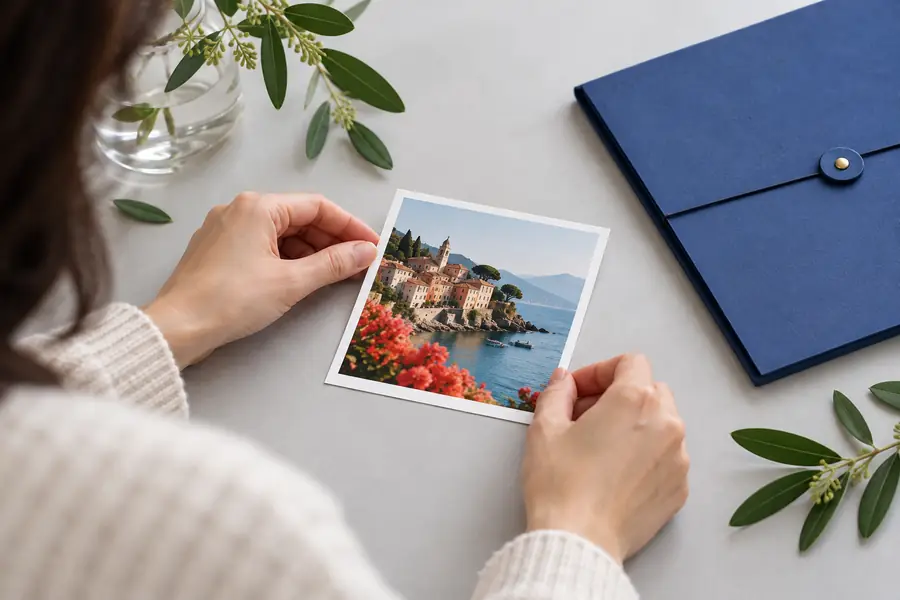
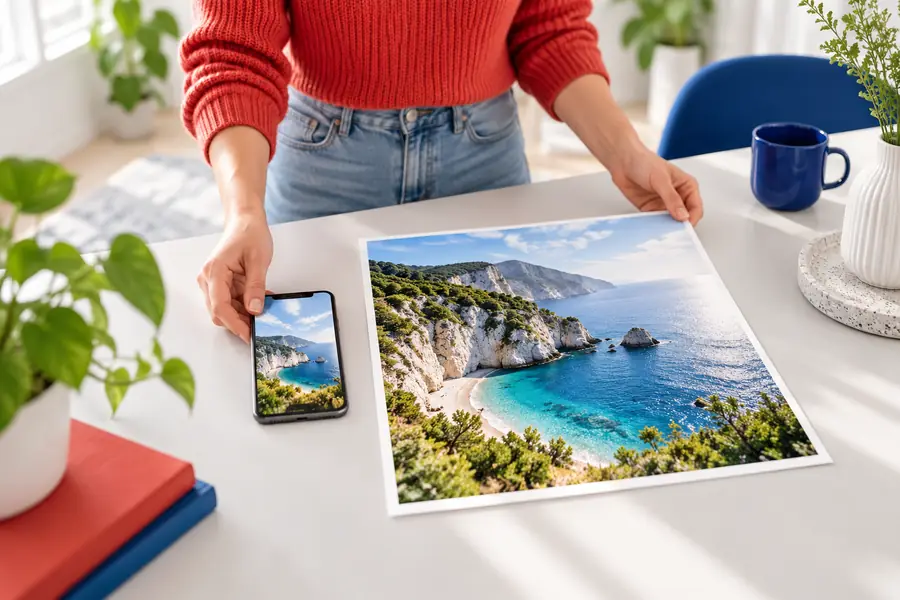
Judge detail, not just dimensions.
Useful starting points
Different users need different checks. These examples show where Bigjpg may help and which related guide can answer the next practical question.
You have an older photo that is recognizable but too small for a frame or family page.
A careful enlargement may create a more usable viewing copy while preserving the untouched original.
is bigjpg safeYou want to enlarge a character image for a wallpaper, reference sheet, or personal display.
Clean line work can respond well, but inspect eyes, hair strands, and flat color boundaries after processing.
bigjpg picture enlargerA product image is useful but undersized for a listing draft or social post.
Bigjpg may improve apparent scale, although logos and fine product text still need a close review.
bigjpg alternativeYou need a larger reference image for layout exploration without pretending it is a newly captured original.
Use the enlarged file as a working reference, then replace it with a higher-quality source when accuracy matters.
what is bigjpgStart with a representative file rather than your entire collection. The Bigjpg workflow is easiest to evaluate when you compare the original and enlarged versions side by side, especially around faces, lettering, and thin edges.
Common questions
These answers address the practical questions people usually have before trying a Bigjpg enlargement workflow.
Bigjpg is commonly used through an online workflow, so the first step is usually handled in a browser. The exact upload experience and available options can change, so check the current interface before preparing a large batch.
It can help make an old photo appear larger and may smooth some compression or noise. It cannot reliably recreate detail that the original camera never captured, so compare faces and small features carefully.
Bigjpg is often considered for both anime-style artwork and photographs, but the visual problems differ. Clean lines and flat colors may enlarge differently from skin, hair, and textured backgrounds, so test an image from the same set first.
Not reliably. Enlargement can improve the apparent shape of some letters, but it should not be treated as dependable text recovery when the source is severely blurred or pixelated.
Review the result at full size and inspect faces, lettering, thin lines, and high-contrast edges. Keep the original beside the output, because a smoother image is not automatically a more accurate one.